How to update the algo in TradingView
Every so often we ship an improvement to a strategy. Applying it is quick: confirm the update with a single click — exactly like updating any other indicator on TradingView — then re-point your webhook alert at the new version. Your settings, alert message, and webhook URL all stay in place.
Spot the update
When an update is available, a purple update badge appears next to the strategy's name — in the chart legend (the indicator list in the top-left corner of your chart) and in the Indicators window. It's the same purple update marker TradingView shows for any invite-only or community script.
Don't see it yet? A chart that was already open when the update went out doesn't know about it until it reloads. Refresh the page — Cmd+R on Mac, Ctrl+R on Windows — and the badge appears. That works the same in the TradingView desktop app as in a browser tab.
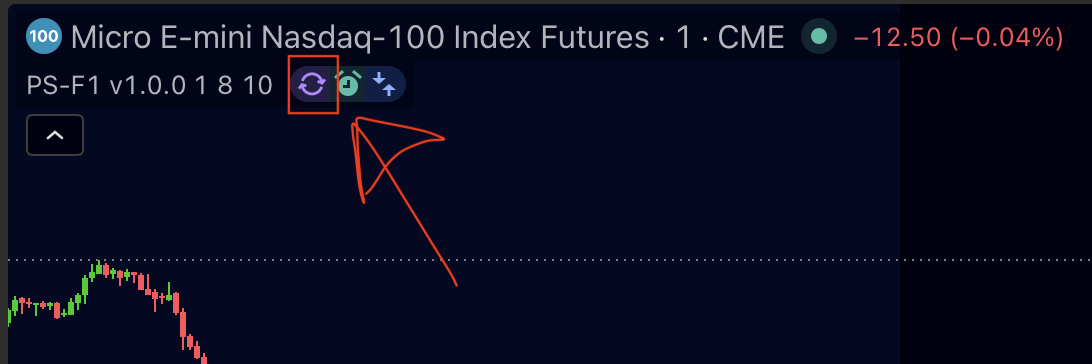
Apply it
Click the purple update sign once to confirm the update. That's the whole process — the strategy reloads on your chart with the new version, exactly like confirming an update on any other indicator.
Re-point your webhook alert
Your existing alert keeps firing from the version it was created with, so point it at the new version too:
- Open the Alerts panel (the clock icon on the right side of TradingView).
- Hover your strategy's alert and click the gear icon (Edit).
- Under Condition, select the latest version of your strategy.
- Click Save.